
Frequently Asked Questions
This section collects common questions and solutions encountered by users when using CloudFlare ImgBed.
Q: ALLOWED_DOMAINS is not set, but cross-domain access doesn't work?
- Please check your Cloudflare firewall settings (e.g., whether hotlink protection is enabled)
- See Issue #8
Q: How to upload via PicGo?
Search for
web-uploaderin PicGo plugin settings and install the version that allows custom prefixes, as shown: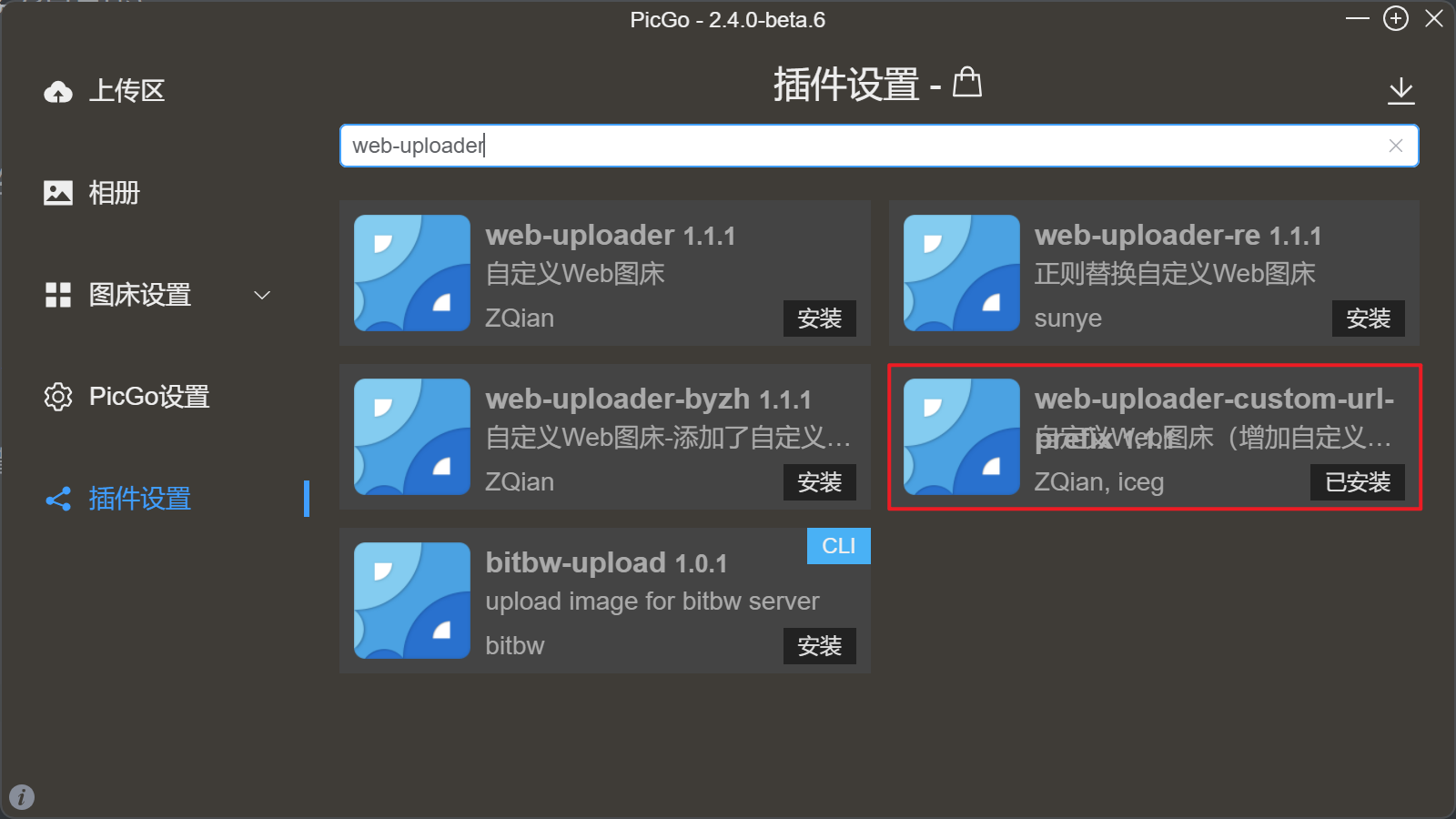
Open
Image Hosting Settings->Custom Web Image Hosting->Default, then configure as shown in the figure below. Note that the API address and custom image URL prefix should be modified according to your own domain. (IfAUTH_CODEis set, make sure to add it to the API address in the format?authCode=your_authCode):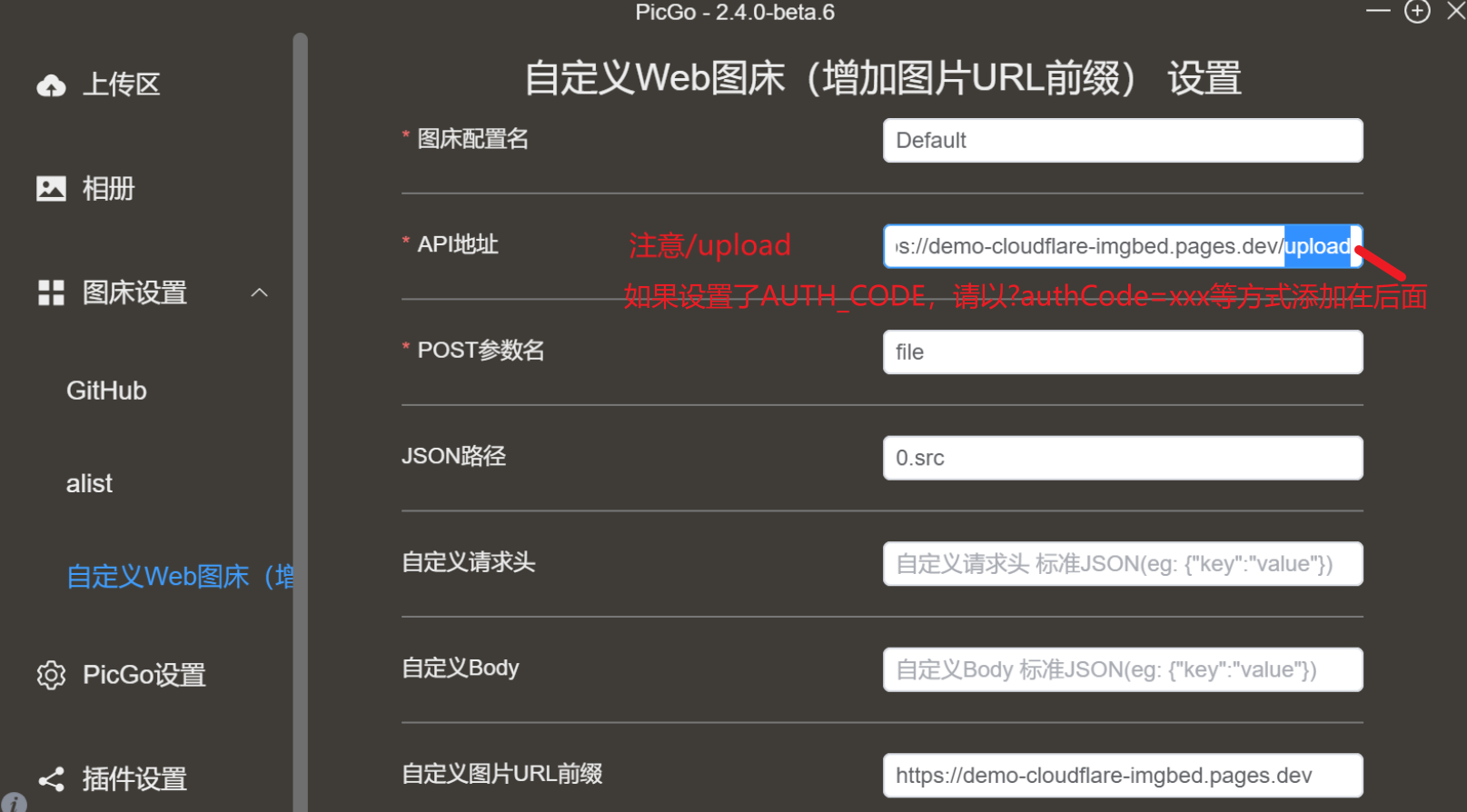
After setup is complete, confirm and you can use PicGo to upload to your self-hosted image hosting.
Q: What to do if uploading high-resolution or certain images via Telegram channel fails?
- Check if the
Server-side Compressionoption is enabled during upload (Upload Page -> Upload Settings -> Server-side Compression). If it is enabled, try disabling it and re-uploading.
Q: What to do if upload fails?
- Check if the upload channel is configured correctly
- Check if the Telegram channel has granted the bot sufficient permissions
- Check if KV database or D1 database is correctly bound (one of the two)
- Check if updated to the latest version
- Go to issues to find similar problems
Q: Does TG_CHAT_ID have a - in front?
- Follow the value returned by the bot, retain the
-if present
Q: Backend page cannot load records or images
- Network issue, try refreshing the page
Q: Backend operations like delete, blacklist cannot take effect immediately
- Related to CDN cache
- See [Important] About CDN Cache Instructions (Solution for Delayed Effect of Delete, Blacklist Operations) · Issue #123 · MarSeventh/CloudFlare-ImgBed (github.com)
Q: Upload fails after setting S3 to the built-in S3 mapping of OpenList
- Check whether the System Settings -> Upload Settings -> S3 -> Path Style option is enabled; if not, please enable it
- For an explanation of Path Style, see AWS S3 Compatibility - UPYUN Documentation Help Center
Q: How to add a new R2 channel?
- Add a S3 channel instead
Q: What to do if I forgot the admin/user password?
You can reset authentication via the resetAuth endpoint:
- Set the
RESET_KEYenvironment variable (any string, preferably complex), then restart the service - Visit
https://your.domain/api/auth/resetAuth?key=YOUR_RESET_KEYin your browser - On success, authentication credentials are cleared (other security settings like domain whitelist and moderation config are preserved). You can then access the admin panel directly to set a new password
- Make sure to remove or change the
RESET_KEYenvironment variable after use
Q: How to clear an existing password (switch to no-password access)?
Go to System Settings -> Security Settings -> Authentication Management, check the Clear Password checkbox next to the password input field, then click Save. Clearing the admin password will also clear the admin username.